


Receive iPhone mouse and trackpad controls
Back to apps
- Mac
iPocketDock
Free Mac companion for iPocketRemote. Control a nearby Mac from iPhone or iPad, or set up Bluetooth walk-away locking.
First published · 2025-11-04
Last updated · 2026-08-30
Features
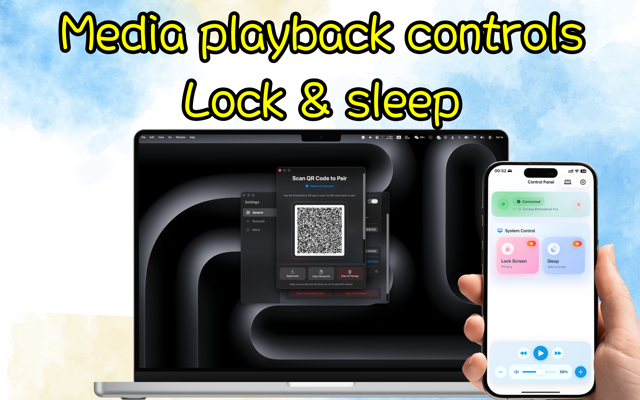
Media, volume, and system shortcuts
Connect instantly with a scan
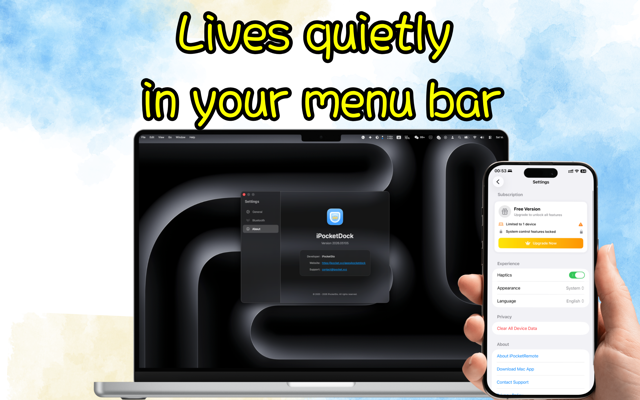
Local, direct connection for peace of mind
Overview
What is iPocketDock?
iPocketDock is the macOS companion for iPocketRemote. It runs in the background, pairs over the local network, and applies pointer, trackpad, media, volume, lock, and related system actions requested from your iPhone or iPad. Some setups also use Bluetooth proximity behaviors such as lock when you walk away and unlock when you return (with media pause/resume where supported).
Who it is for
- Mac users who want a phone as a local remote
- People who need lock / unlock when nearby style workflows
- Anyone pairing with iPocketRemote for presentations or couch control
Pair with the iPhone trackpad
- Install iPocketDock using this page’s download button and open the Mac menu bar app.
- Install iPocketRemote on iPhone or iPad, with both devices on a reachable local network.
- Open the Mac’s pairing QR window, add a device on the phone, and scan. Wait for the online state. Current versions do not use legacy manual pairing codes.
- Check Dock’s Accessibility permission, then test pointer movement, clicking, and two-finger scrolling. Grant Automation permission for media apps when needed.
Follow the iPhone mouse, gesture, and keyboard shortcut tutorial for the first control test. If Dock is already installed, go straight to the iPhone and iPad companion page to get the other app.
Companion apps
Use Dock together with iPocketRemote on iOS. Without the iOS app, Dock has nothing to pair with for remote control.
Set up walk-away locking
Start with a Bluetooth device you normally keep with you. Add it in Dock’s proximity settings, then test the connection at your desk before enabling automatic actions. A device that stops advertising or goes to sleep may not provide a stable proximity signal.
Walk a short distance away and return several times. Adjust the available distance and delay settings so normal movement does not lock your Mac unexpectedly. Test media pause and resume with the player you actually use. Bluetooth signal strength is an estimate of proximity, not a measurement of room boundaries.
Phone remote control needs iPocketRemote. The Bluetooth proximity workflow uses the device selected in Dock; it is a separate setup from QR pairing. Keep your normal Mac password and lock settings in place.
Connected, but a control does not work?
| Symptom | What to check first |
|---|---|
| Mac is not listed | Keep Dock running and both devices on a reachable local network; check Local Network permission. Guest Wi-Fi may isolate devices. |
| Scanning does not finish pairing | Open a fresh pairing code on the Mac and finish the prompts on the phone. Keep both apps up to date. |
| Pointer, keyboard, or lock action fails | Check Dock’s Accessibility access in macOS System Settings. |
| A media app does not respond | Check Automation permission for that app, then test while the player is open. |
| Locking triggers at your desk | Recheck the selected Bluetooth device and its sleep behavior, then adjust proximity settings. |
For the full installation sequence, permission checklist, and first control test, follow Control a Mac from iPhone on the local network.
FAQ
What is iPocketDock?
iPocketDock is a macOS background app that connects to iPhone/iPad over the local network to control media playback, volume, lock screen, and more.
How do I pair my device?
Open the pairing QR window from the menu bar, then add a device in iPocketRemote and scan the current code. Keep the window open until the phone confirms the connection. Legacy manual codes are not supported by current versions.
What permissions are required and why?
Accessibility (lock screen, keystrokes), Automation (control Music/Spotify), Local Network (connectivity). Use “Preferences → Permissions” to jump to the corresponding System Settings pages.
Where can I get the iOS app?
Use “Preferences → General → Download PocketRemote”, or visit https://ipocket.xyz/apps/pocketremote/.
PRACTICAL GUIDES
Go deeper on this workflow
MORE FROM IPOCKET
Related apps
-
 iPocketRemoteiPhoneiPad
Use your iPhone or iPad as a Mac trackpad for pointing, clicking, scrolling, and window shortcuts, plus media and volume controls. Requires iPocketDock on your Mac.
View app -
 PocketSubsiPhoneiPadMac
PocketSubs is a local-first subscription tracker: track recurring bills, set renewal reminders, and see upcoming charges and ongoing spending.
View app -
 Real TodoiPhoneiPadMac
Capture and finish tasks in one calm list on iPhone, iPad, and Mac. On your Mac, a desktop companion keeps quick add, complete, and postpone close without interrupting your work.
View app