

iPhone trackpad: click, scroll, and drag
Back to apps


- iPhone
- iPad
iPocketRemote
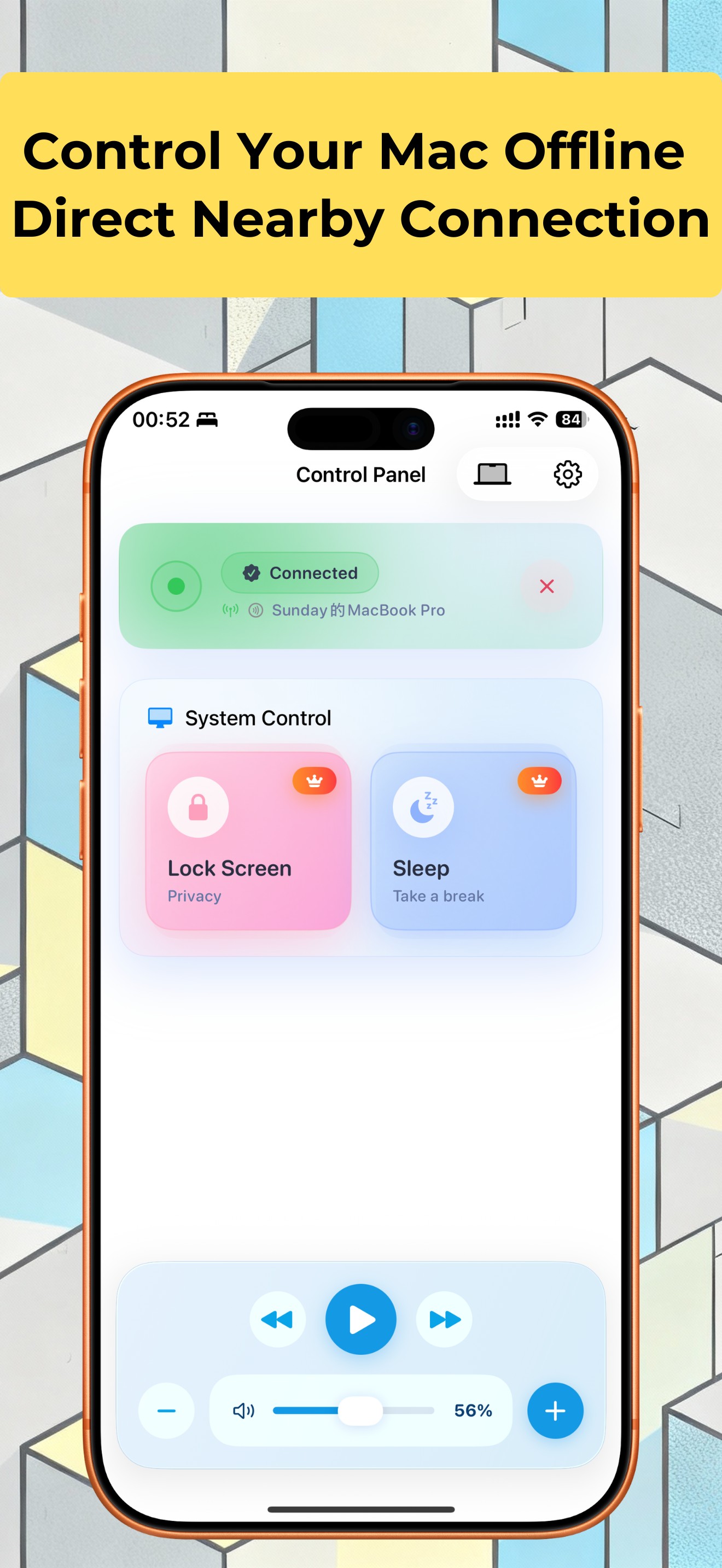
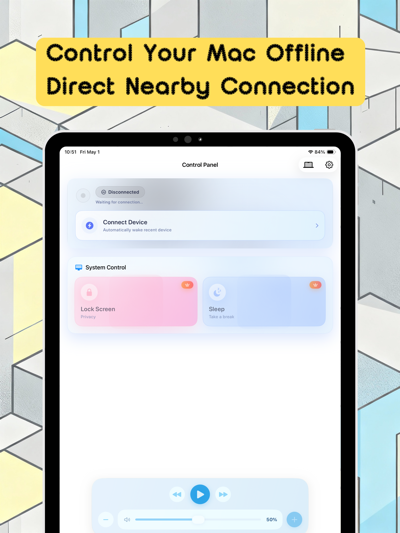
Use your iPhone or iPad as a Mac trackpad for pointing, clicking, scrolling, and window shortcuts, plus media and volume controls. Requires iPocketDock on your Mac.
First published · 2025-10-11
Last updated · 2026-10-06
Features
Configurable multi-finger gestures and window shortcuts
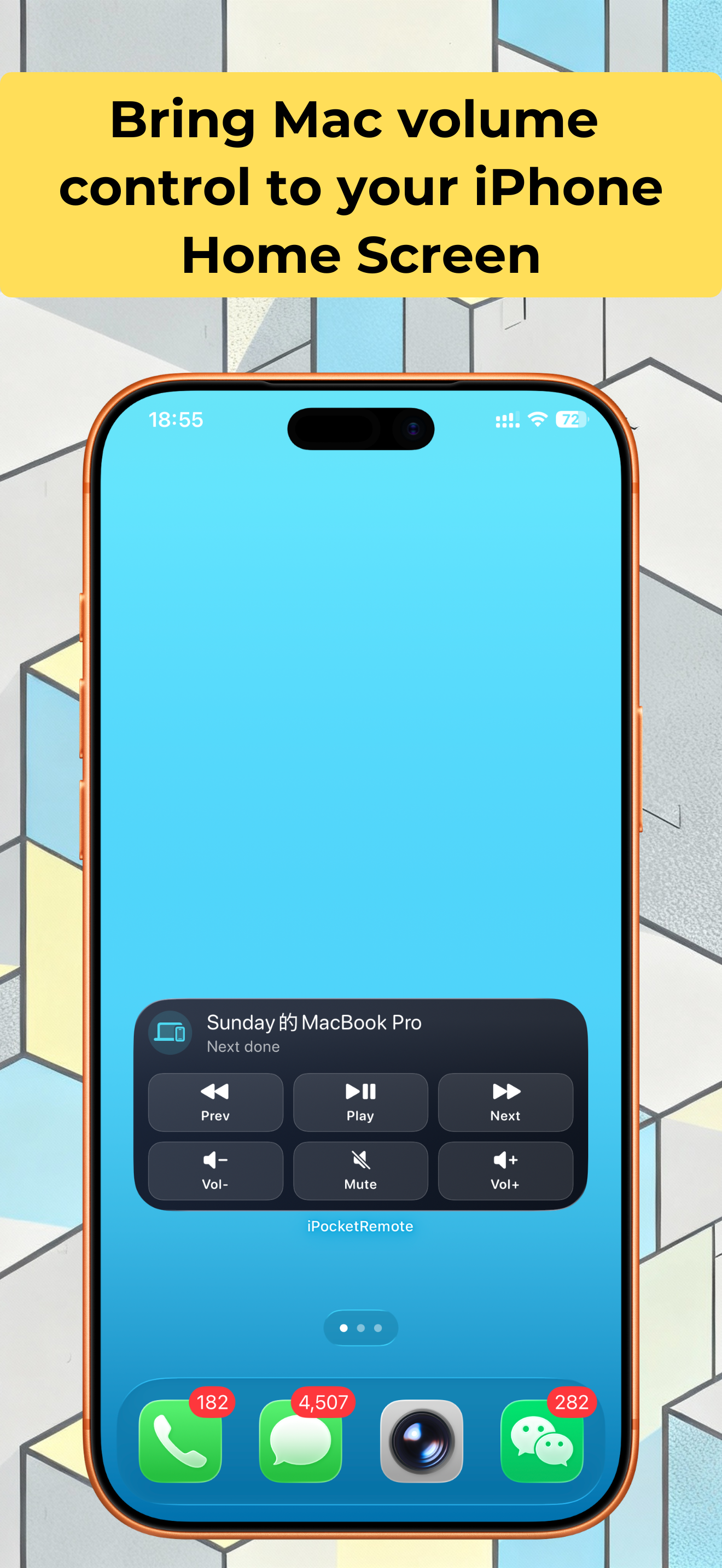
Media playback, volume, and system controls
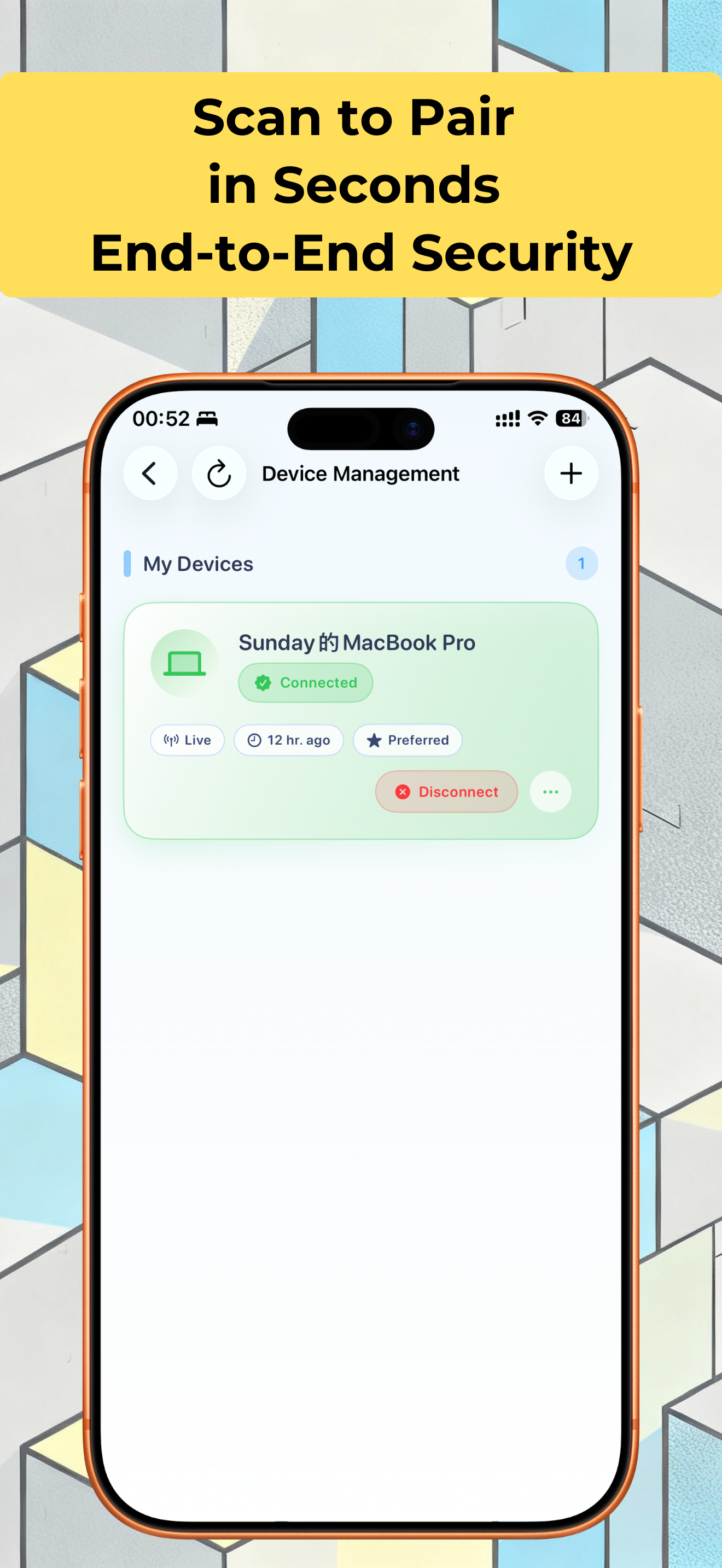
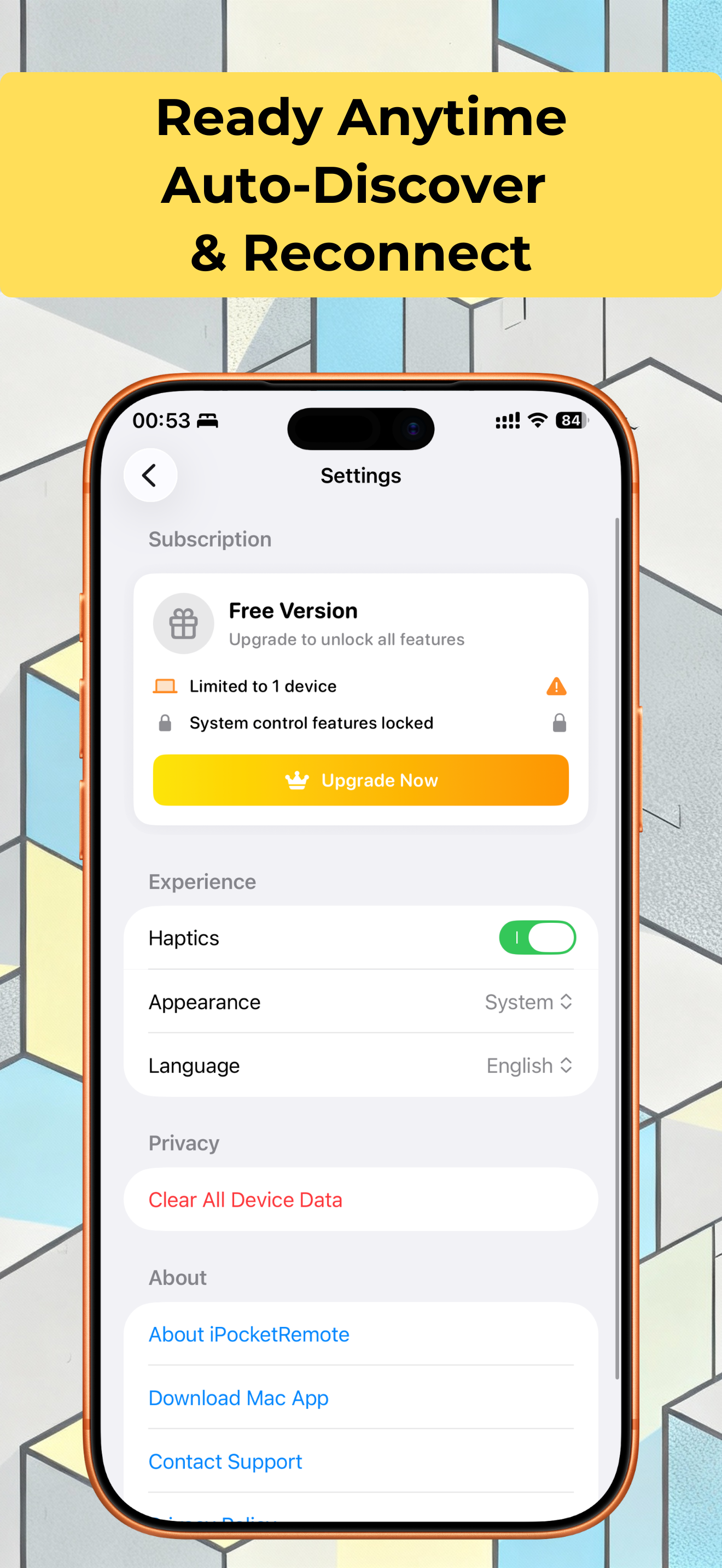
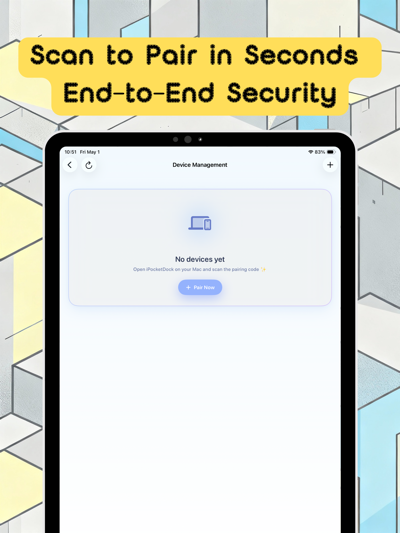
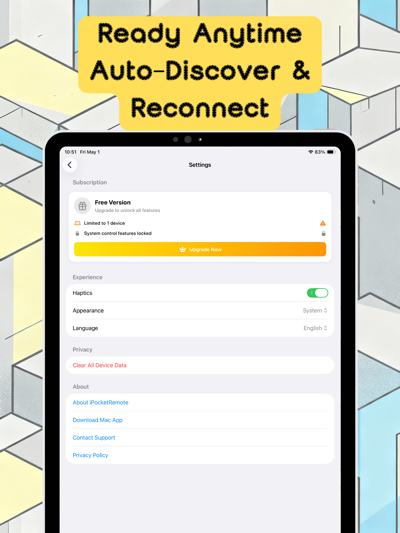
Local QR pairing and automatic reconnection
Overview
Use your iPhone as a wireless mouse and trackpad for Mac
iPocketRemote works with iPocketDock on your Mac to move the pointer, click, scroll, and drag over the local network. Media playback and volume controls are useful from the couch, during a presentation, or elsewhere on the same network.
Start with both apps: download iPocketDock for Mac, then use this page’s App Store button for iPhone or iPad. Follow the QR pairing and permissions guide for the first connection.
Trackpad controls
| Action | Default behavior |
|---|---|
| Move and left-click | Move one finger; tap to click or double-tap to double-click. |
| Right-click and scroll | Tap with two fingers to right-click; slide two fingers to scroll. |
| Drag | Hold one finger, then move; alternatively choose three-finger dragging in settings. |
| Browser navigation | Three-finger navigation is the default; use a quick horizontal swipe for back or forward. |
| Tabs and windows | Choose tab switching for three fingers; four-finger desktop and window actions depend on Mac shortcut settings. |
If you have customized gestures, use the current mouse-mode settings as your reference. See the trackpad and keyboard shortcut instructions for details.
Pair by QR and test one control
- Install and run iPocketDock on the Mac, then open its pairing QR window.
- Put both devices on a reachable local network. Allow camera and Local Network access on the phone.
- Add a device in the phone app, scan the current QR code, and wait for the Mac to appear online.
- Change the volume once, then test the pointer in mouse mode. If the pointer does not respond, check Dock’s Accessibility permission on the Mac.
Current versions use QR pairing; legacy manual pairing codes no longer apply. For scanning failures, disconnection after sleep, or unresponsive media controls, follow the connection and permissions checklist.
Connection and control scope
The phone and Mac connect over the local network, for trusted devices that can reach one another. Keep the Mac screen in view: this workflow does not stream a remote desktop over the public internet. Keyboard-related actions here mean supported shortcuts, not a full text-entry keyboard.
FAQ
Can I use my iPhone as a mouse for Mac?
Yes. Pair with iPocketDock, open mouse mode, and use the touch area to move, tap, double-click, right-click with two fingers, and scroll. Dock needs Accessibility access on the Mac.
Is this a full remote typing keyboard?
This page covers the trackpad and keyboard shortcuts for navigation, tabs, and desktops, not a full text-entry keyboard. Shortcut results depend on the active Mac app, focus, and system shortcut settings.
How do I pair the apps?
Open the pairing window in iPocketDock, then add a device in the phone app and scan the current QR code. Current versions use QR pairing; legacy manual codes do not apply. Update both apps to compatible versions first.
Which operating systems are supported?
The current App Store version requires iOS 17 or later. The current iPocketDock download requires macOS 13 or later. Check the store and download compatibility again before installing.
PRACTICAL GUIDES
Go deeper on this workflow
MORE FROM IPOCKET
Related apps
-
 iPocketDockMac
Free Mac companion for iPocketRemote. Control a nearby Mac from iPhone or iPad, or set up Bluetooth walk-away locking.
View app -
 ClawRSS: OpenClaw RSS Feed ReaderiPhoneiPad
ClawRSS is a modern RSS feed reader for iPhone and iPad with a smarter Today feed, AI summaries, built-in translation, bookmarks, Apple Push alerts, and optional OpenClaw workflows.
View app -
 Weather IsletiPhoneiPad
Watch the weather come to life on a 3D island.
View app